
How to stream to a Samsung TV using AirPlay
Ever wanted to stream that funny cat video straight to your Samsung TV? Or maybe you fancy showing your holiday snaps to the rest of the family without crowding round. If you want to stream from your iPhone to a Samsung TV, you can do it easily using Apple AirPlay (sometimes called Screen Mirroring on different iOS versions).
AirPlay lets you wirelessly mirror or stream media from your Apple device straight to your television. This means you can enjoy your favourite content — from funny cat videos to family photos - on a larger screen. So more people get to enjoy the view.
How to enable AirPlay on your TV
Before you get going, just make sure that your Samsung TV actually supports AirPlay. Most models from the last few years are compatible with it, so it shouldn't be a problem. Here's what you need to do:
- Turn on your Samsung TV and check that it's connected to the same Wi-Fi network as your Apple device.
- Grab your TV remote and head to the 'Settings' menu.
- Look for the 'AirPlay Settings' or 'Apple AirPlay' option.
- Toggle the AirPlay feature to 'On' or 'Enabled'.
Once AirPlay has been activated, you're ready to start streaming from your iPhone, iPad, or MacBook. Right, here's how to AirPlay to a Samsung TV...
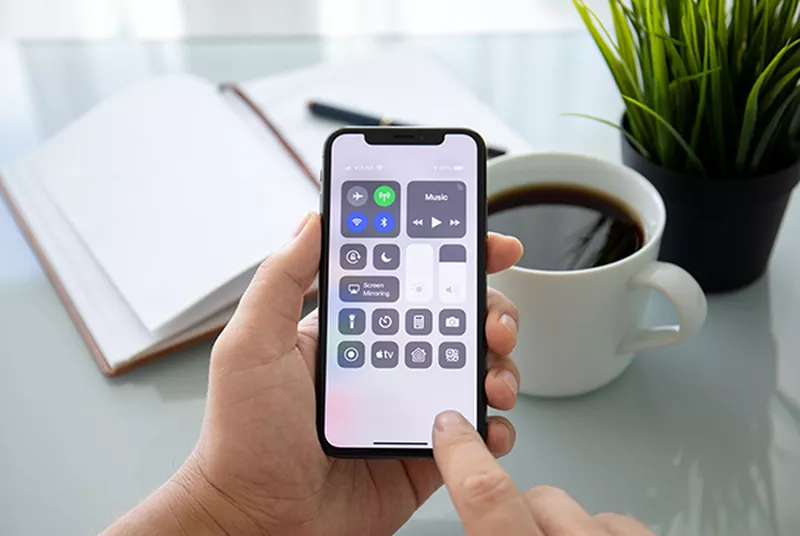
How to AirPlay content from iPhone to a Samsung TV
To stream content from your iPhone to a Samsung TV using AirPlay, follow these simple steps:
- Connect your iPhone to the same Wi-Fi network as your telly.
- Open the app, or the content you want to stream on your iPhone.
- Look for the AirPlay icon. It's usually found in the 'Control Centre' or your playback controls.
- Tap the AirPlay icon and pick your Samsung TV from the list of available devices.
- Your iPhone screen should now be mirrored on your TV. So, you can get streaming straight away.
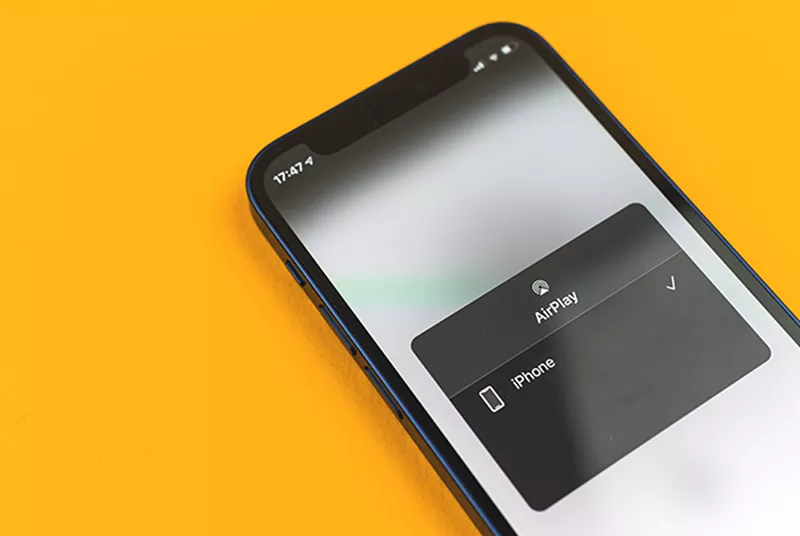
AirPlay from iPad to Samsung TV
Using AirPlay from your iPad is pretty similar to your iPhone:
- Make sure your iPad is connected to the same Wi-Fi network as your Samsung TV.
- Fire up the app or the content you'd like to stream from your iPad.
- Find the AirPlay icon and press it.
- Select your telly from the dropdown list of devices.
- And that's it! Your iPad screen should now be showing up on your telly.

AirPlay from a MacBook to a Samsung TV
AirPlaying from your MacBook to your Samsung telly is just as easy:
- Like with the others, see whether your MacBook is connected to the same Wi-Fi network as the telly. If it isn't, get it hooked up first.
- Open whatever you want to stream on your MacBook.
- Click on the AirPlay icon (you can find it in the menu bar, or your playback controls).
- Choose your Samsung TV from the devices list.
- If you've done it right, your MacBook screen will be displayed on the TV.

5 top AirPlay tips and tricks
Here are a few handy tips to keep your AirPlay experience nice and smooth:
- Update your Apple gadgets and Samsung TV with the latest software versions. This'll stop you from running into any compatibility issues.
- Is it laggy? Buffering becoming a right nightmare? See whether your Wi-Fi network is stable. If you don't have a strong signal strength, your streaming sessions are going to be interrupted.
- Have a look if there are any special firmware updates for your telly. They might help to improve your AirPlay performance.
- If you have any AirPlay related problems, try restarting all of your devices and the Wi-Fi router to reset the connections. It's the oldest trick in the book, but sometimes switching stuff on and off again is all you need to do!
- Try out some different apps and content to really explore the full potential of AirPlay on your TV. After all, it's some pretty nifty tech.
AirPlay FAQs
Here you go - we've rounded up some of the most common queries to help you get the best out of streaming to your Samsung TV.
Do I need an Apple TV box to use AirPlay on my Samsung TV?
No, you don't. A lot of Samsung TVs have AirPlay 2 built in. So you can beam videos, music, or photos straight from your iPhone, iPad, or MacBook.
Can I still use my phone while something's AirPlaying?
Absolutely! Once your content is streaming, you can scroll, reply to messages, or sneak in a quick game. Your TV will happily keep playing your show in the background. Just remember, if you're mirroring your screen, everything on it appears on the big screen too.
Why can't my Samsung TV find my iPhone?
Usually it's a Wi-Fi mix-up. Remember, both devices need to be on the _same_ network. If your iPhone is accidentally roaming on the neighbour's Wi-Fi, AirPlay won't know your TV exists. Fix that, and you're back in business.
Can I use AirPlay without Wi-Fi?
AirPlay does need Wi-Fi, but here's a trick: you can use your iPhone's personal hotspot and connect your TV to it. It's not quite plug-and-play, but it's a handy workaround when your main Wi-Fi isn't available.
Can I AirPlay from multiple devices at once?
Not quite. Your Samsung TV can only play one stream at a time. But you _can_ switch between devices as much as you like.
How can I make AirPlay even smoother?
For super-smooth streaming, give your Wi-Fi a little TLC. Keep your router in the open, avoid too many devices hogging the network, or try a mesh Wi-Fi system for a stronger connection.